New feature
Edit your event next to the page your guests see
Edit event now opens as a full page with your event page beside it, on a phone or a desktop. Plus Repeat, Cancel event, and an email to guests when plans change.

Edit event used to open as a form, with a small preview beside it. Now it opens as a page of its own: your settings on the left, and your event page on the right, the way guests see it on a phone or a desktop. It opens over the page you were on and takes you back there when you save.
Edit what you see
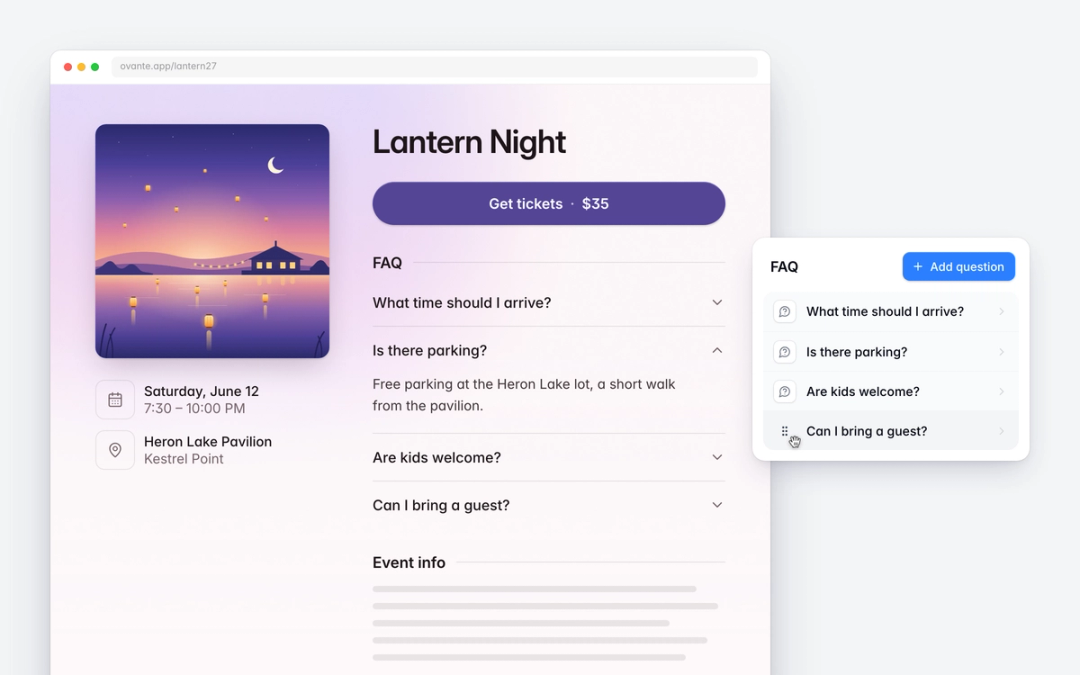
Point at any part of the preview, like the banner or the hosts, and click Edit to open its settings. Your changes show in the preview as you type, before you save.
Put your page in your order
The top of the page stays put: the banner, the event's name and button, the date and the place. Below it, drag hosts, the guest list, photos, the description and tags into the order you want. On a Showcase page, the ticket list moves too.
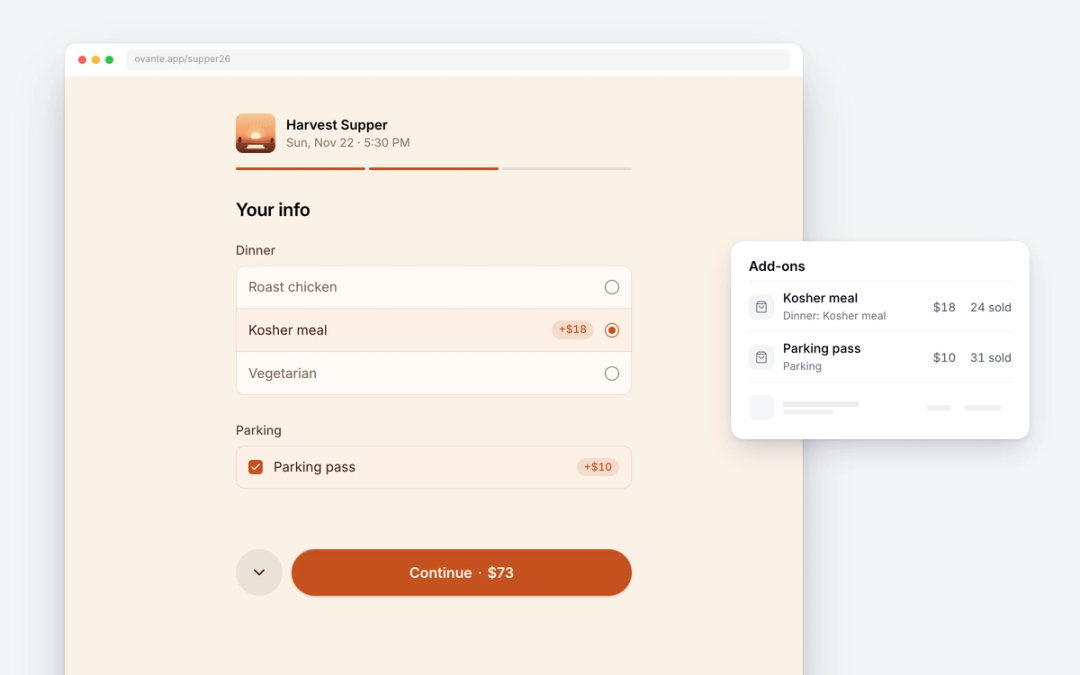
Tickets reorder the same way. On a Standard page, the preview switches to checkout while you work on tickets, so you see them where guests choose them.
Decide what the button says
Turn the price off the main button, or set the default ticket to None. With None, checkout opens with nothing picked and guests choose their own ticket.
Tags on the event page
An event's tags now show at the bottom of its page. Each one links to your calendar filtered to that tag, so a guest who came for one class finds the next.
Create events the same way
New events open in the same editor, with a preview of the page before it exists. Add a name, a date, a banner and a ticket, and create it when it looks right.
Tell guests when plans change
Move the date, the time or the place after people have tickets, and Ovante asks whether to email them. The email is written for you, shows what changed, and links to add the new time to their calendar. If you haven't shared the address with guests yet, the email says it changed without naming it.
Run it again next year
Repeat copies an event onto a new date, with its tickets, questions and look. It moves the year in the name forward, copies your hosts with new links, and can keep the copy off your calendar until you're ready to share it. Anyone on your team who can create events can repeat one.
Cancel an event in one step
Cancel event stops sales, takes the event off your calendar and marks its page and every ticket as cancelled. It can email your guests for you. Refunds stay in your hands: Orders lists everyone who paid. If plans come back, Restore event lifts the cancellation, and you turn sales back on when you're ready.
Sales and sharing in the header
Every event now has a Sales menu at the top of its pages: On sale, Paused or Sold out, from any tab. Share copies the link, shows a QR code and gives you the embed code for your website.
Checkout questions, payment methods and thank-you messages moved to one Checkout page under Sales, in the order a guest meets them.
Know when it's ready to share
A new event's Overview lists what's left before you share it: a banner, a description, a ticket on sale, payouts. On the day, it shows how many guests have checked in. After the event, it offers a thank-you email, a place for photos and Repeat.
Tell us what's next
If something in the editor still takes too many steps, write to levik@ovante.app and tell us.
Run your next event on Ovante
Free to start. No card needed.